

A category answers the question "what was this for?" — groceries, salary, rent. Every transaction belongs to exactly one category, and it is categories that reports and budgets are built on.
Where categories live
Open Settings and go to the Categories tab. Categories are split into income and expense; the app already gives you a ready set after registration, and you shape it to your life.
Create or edit
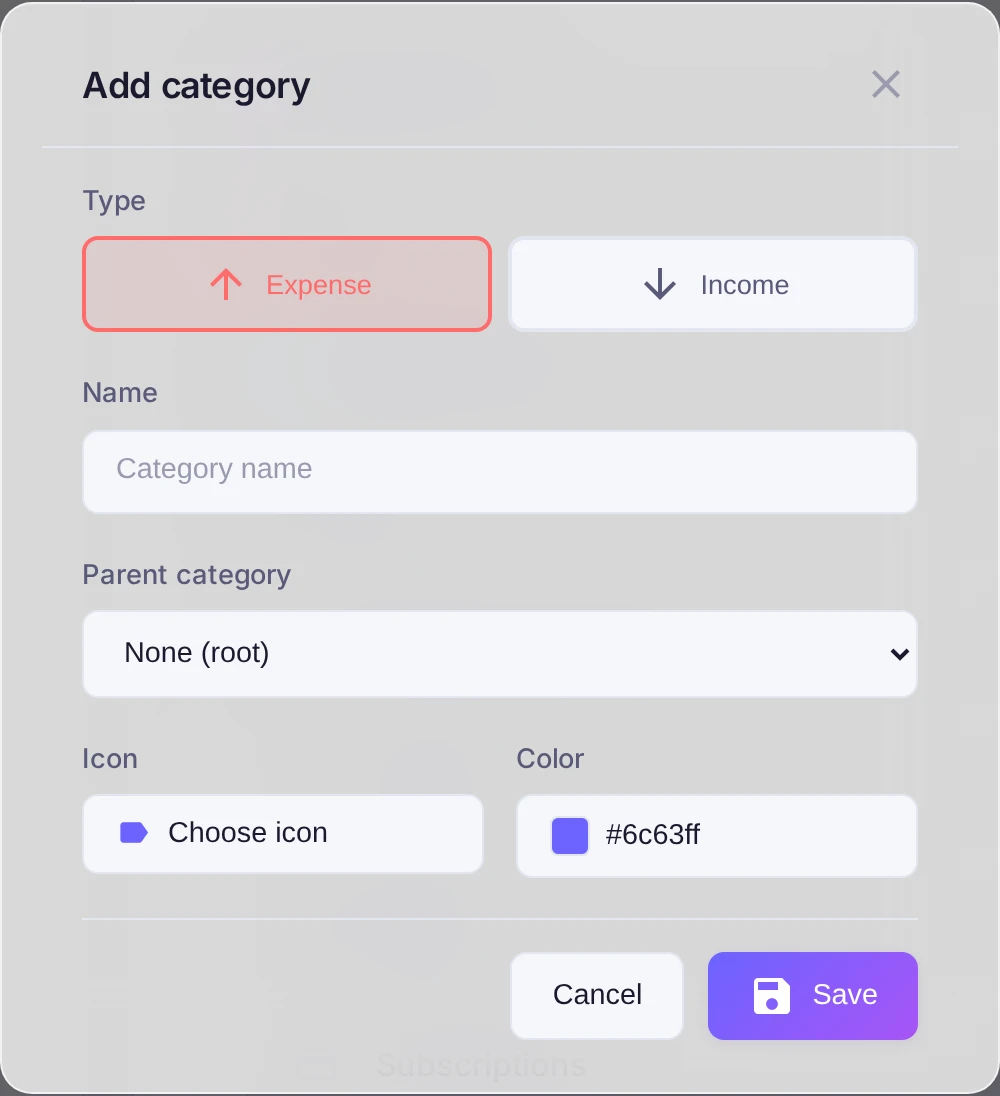
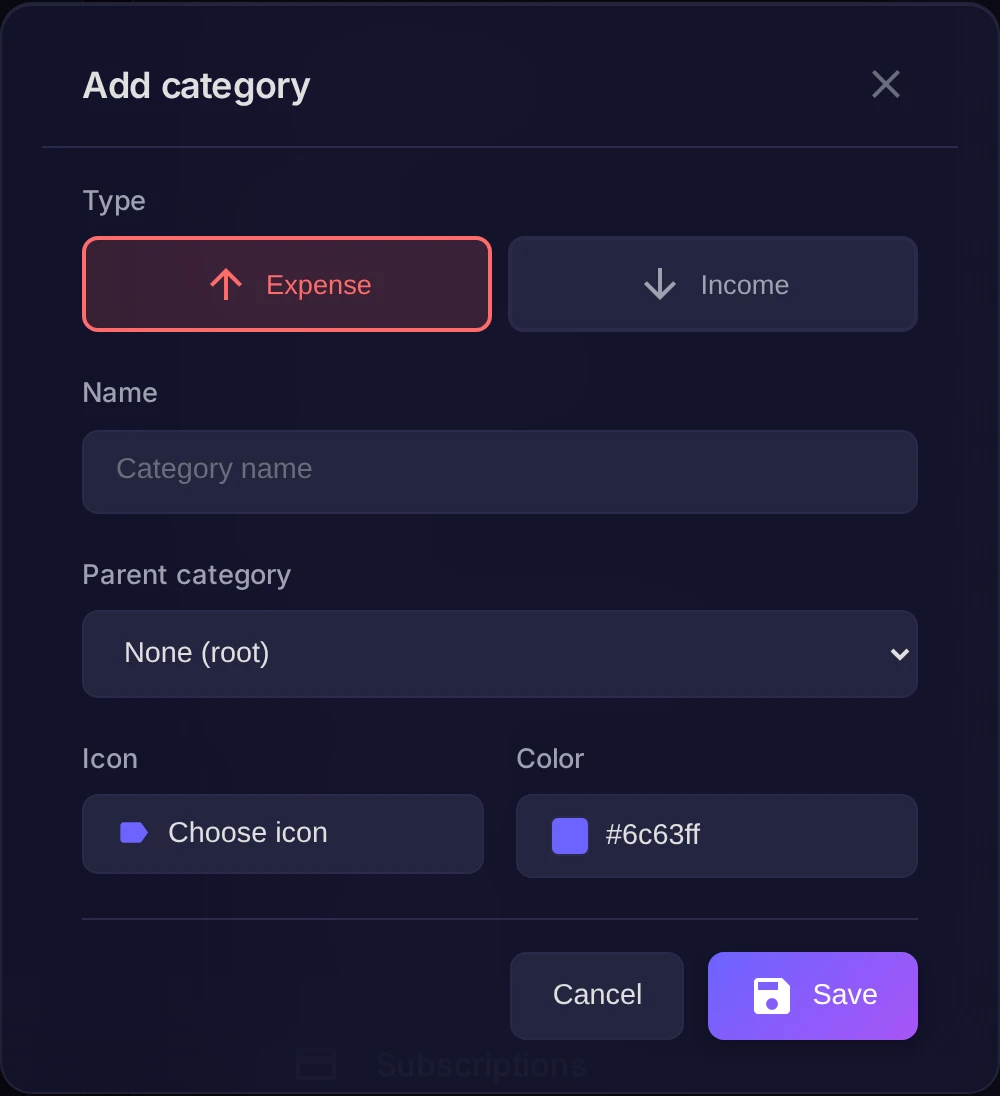
Press Add and fill in the form:
- Category name — for example "Cafés" or "Salary".
- Parent category — optional. Choose one to make this a subcategory, so "Cafés" and "Restaurants" can sit under "Food".
- Color and Icon — to recognize the category at a glance in lists and charts.
To change a category later, open it and edit the same fields.
Delete a category
A category can be removed, but only if it has no transactions. If operations are still attached to it, deletion is blocked and you see how many there are — reassign or delete those transactions first, then remove the category. Categorization rules tied to the category are cleaned up automatically.
The technical categories the app uses internally (fees, balance corrections) are hidden and protected — you won't see or delete them.